There are some situations when a Walmart customer would rather receive a replacement item instead of a refund, such as when they receive an item that’s broken or the wrong color. In this guide, you’ll learn how to set up Replacement rules in Seller Center.
Add a Replacement rule
Step 1 — Get started
Navigate to your Settings in Seller Center and select Returns under the Shipping profile section. Then, locate Replacements by department.
Step 2 — Add a rule
Select Add Replacement Rule and enter the Department you want the rule to be applied to. Under Replacements enabled, indicate Yes or No, then select Add Replacement rule. The rule will be added to the Replacements by Department section on the Returns page in your Settings.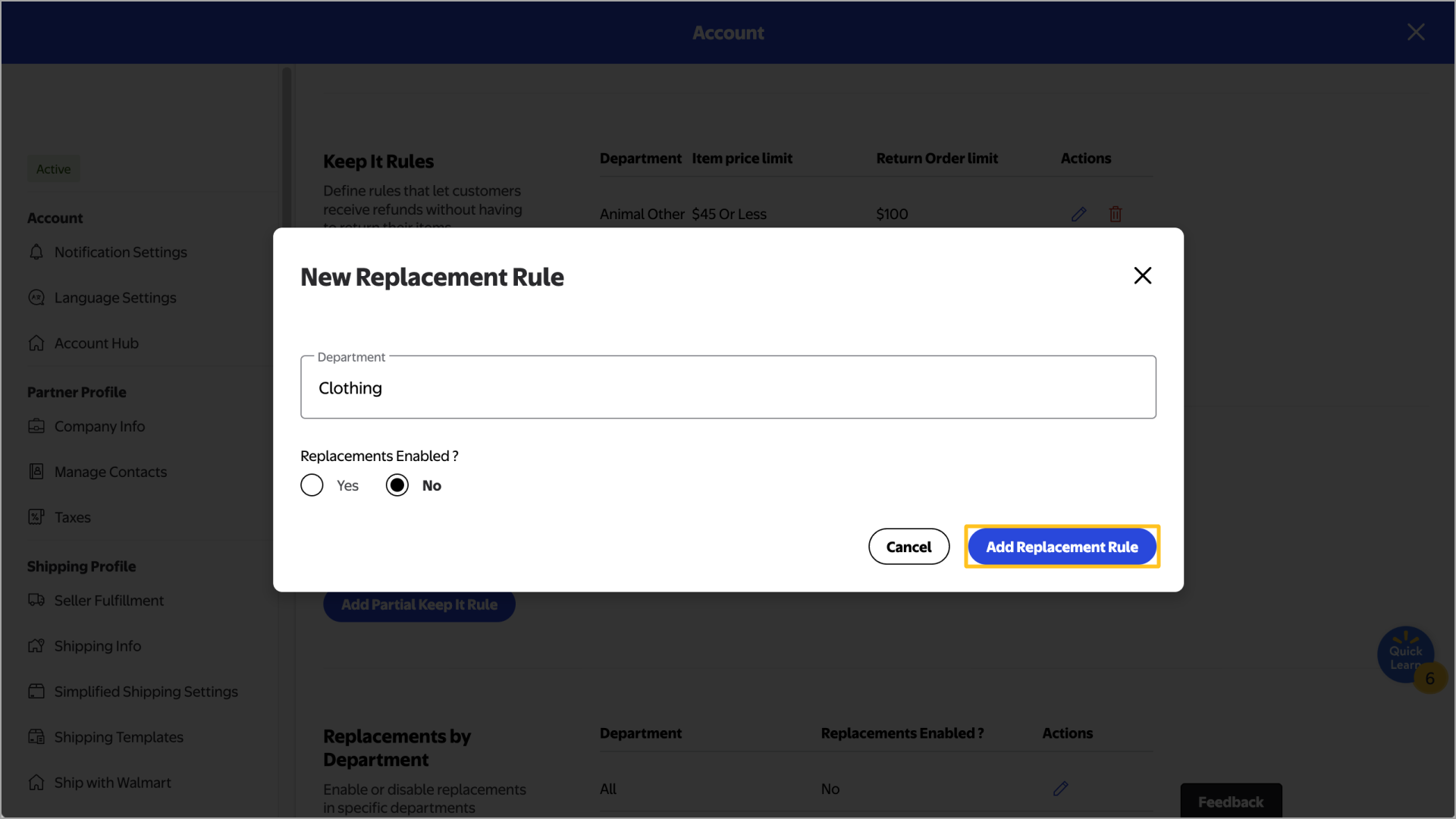
If you have Keep it, Partial Keep it and Replacement rules enabled for the same department across all three, Walmart will automatically suggest the most suitable option to customers.